How I Stopped Wrestling with Diagram Tools and Started Using ChatGPT + PlantUML
March 30, 2025

If you’ve ever built diagrams for SAP Commerce projects, you probably know the feeling.
You start out with good intentions — trying to explain how everything fits together.
Then you open your favorite diagramming tool… and lose the next hour lining up boxes, fixing arrows, and adjusting text so it doesn’t spill off the page.
That was me too.
All I wanted was a clean, simple diagram that told the story. But I’d spend more time fixing the layout than thinking through the architecture.
At one point I thought:
“Why can’t I just explain what I want in plain English / Mandarin Chinese / Hindi / Spanish / Arabic / French / Bengali / Portuguese / Russian / Indonesian / Urdu / Standard German / Japanese / Nigerian Pidgin / Egyptian Arabic / Marathi / Vietnamese / Telugu / Hausa / Turkish / Western Punjabi / Swahili / Tagalog / Tamil / Yue Chinese / Cantonese / Wu Chinese – Shanghainese / Iranian Persian / Korean / Thai / Javanese / Italian / Gujarati / Levantine Arabic / Amharic / Kannada / Bhojpuri / Sudanese Arabic / Polish / Pashto / Malayalam/Sign Language/Any Language and have the tool build it?”
It turns out that with the right tools, you actually can.
I realized that ChatGPT and PlantUML are a surprisingly great combonations.
So, instead of dragging shapes around, I just describe what I want — and ChatGPT builds a rough diagram in seconds.
No stress. There is no weird formatting. And way less time spent fixing arrows.
Let me give you a quick example.
I needed to explain a pretty typical flow:
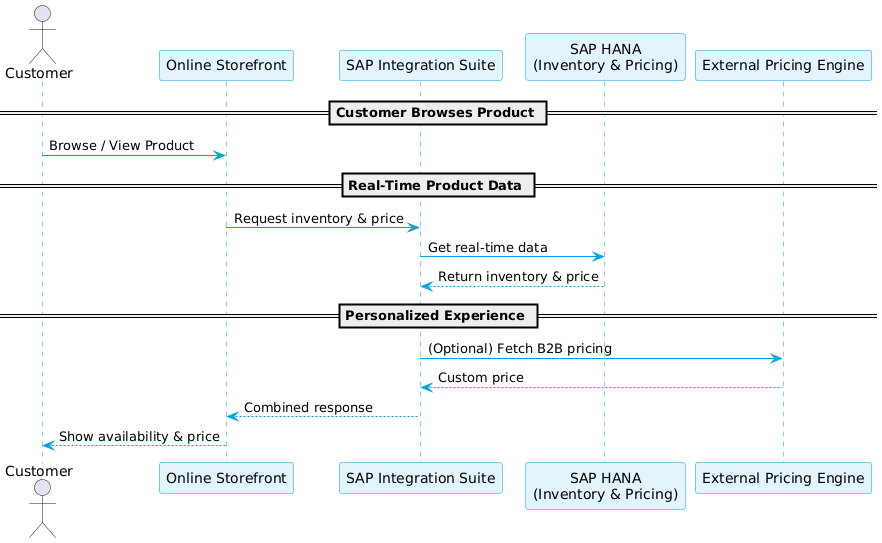
A customer browses a product on our SAP Commerce storefront. Behind the scenes, we check real-time inventory and pricing from SAP HANA, going through SAP CPI.
Here’s what ChatGPT gave me (in PlantUML):
@startuml
!define SAP_BLUE #00A1E4
!define SAP_LIGHT_BLUE #E3F4FC

skinparam sequence {
  ArrowColor SAP_BLUE
  ParticipantBorderColor SAP_BLUE
  ParticipantBackgroundColor SAP_LIGHT_BLUE
  LifeLineBorderColor SAP_BLUE
  LifeLineBackgroundColor SAP_LIGHT_BLUE
  FontSize 14
}

actor Customer
participant "Online Storefront" as Storefront
participant "SAP Integration Suite" as Integration
participant "SAP HANA\n(Inventory & Pricing)" as HANA
participant "External Pricing Engine" as PricingEngine

== Customer Browses Product ==
Customer -> Storefront : Browse / View Product

== Real-Time Product Data ==
Storefront -> Integration : Request inventory & price
Integration -> HANA : Get real-time data
HANA --> Integration : Return inventory & price

== Personalized Experience ==
Integration -> PricingEngine : (Optional) Fetch B2B pricing
PricingEngine --> Integration : Custom price

Integration --> Storefront : Combined response
Storefront --> Customer : Show availability & price
@enduml
I copied and pasted the above into diagrams.hybrisarchitect.com, which generated the following diagram:
You don’t even need to install anything.
I’ve set up a free online PlantUML editor at:
👉 diagrams.hybrisarchitect.com
Simply paste the PlantUML code above, and your diagram will be generated automatically.
Here’s what I recommend as a starting point for generating your own diagrams for upcoming projects:
Let’s keep learning and diagramming. If you have any questions or feedback, please email me at the address below.

Marc is the Founder of HybrisArchitect.com.
He enjoys helping others learn more about SAP Commerce Cloud (Hybris). Marc is a SAP Commerce Certified Professional and has held the role of SAP Commerce Cloud Architect at Deloitte, PwC, Brillio (a Bain Company), and Nasty Gal. Marc holds an M.S. Software Engineering from Carnegie Mellon University and a B.S. in Accountancy from California State University, Fresno. He can be reached at: mraygoza@localhost